Unity
AuraForUnity Setup
Aura is now available for Unity, powered by Coplay tech. It ships as a standalone desktop app that bridges into the Unity Editor — the same chat UI, backend, and AI engine that powers Aura for Unreal Engine, adapted for Unity workflows (C#, MonoBehaviour, ScriptableObject, prefabs, scenes, and the rest of the Unity toolbox).
System requirements
- Operating system: Windows 10/11 (x64) or macOS on Apple Silicon.
- Unity: 2022.3 LTS or newer.
- Git: required for installing Unity packages. Install from git-scm.com/downloads.
- Python / MCP: none — the runtime ships inside the AuraForUnity installer.
- Network: internet connection for sign-in and chatting with Aura.
- Disk: ~1.4 GB for the AuraForUnity installer plus its bundled Python runtime.
Installation
⚠️ Git is required for installing Unity packages. If you don't have it already, install it from git-scm.com/downloads before continuing.
-
Login at tryaura.dev, then under Select engine/OS choose Unity - Windows or Unity - macOS and click Download Aura — you'll get the Windows
.exeor the macOS (Apple Silicon).dmg. -
Run the installer, then launch AuraForUnity.
-
Sign in to your Aura account.
-
Open the project selector in the top-left of the AuraForUnity window and pick the Unity project you want to work on.
-
If that project doesn't have the Aura Unity plugin installed yet, AuraForUnity shows an Install Aura plugin confirmation. Click Install — AuraForUnity adds the Aura package to the project's
Packages/manifest.json, and Unity picks it up and installs it automatically the next time you open the project.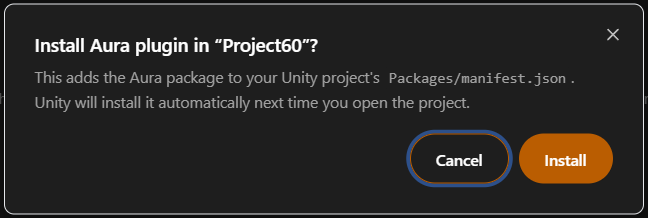
-
Open (or reopen) the Unity project and wait for the plugin to finish installing.
-
Start the MCP session so Aura's tools can connect to the editor. In Unity, open Window → MCP For Unity → Toggle MCP Window (or press
Ctrl+Shift+M). In the MCP For Unity window, set Transport toStdio, then click Start Session — the status dot turns from red to connected.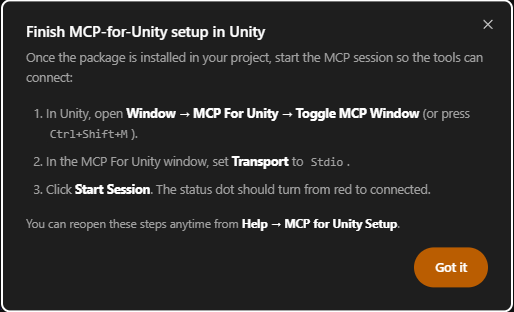
-
Confirm Aura can see your project — in the chat, ask: "Tell me about this project."
💡 AuraForUnity runs as a single desktop window. If you have several Unity projects open, each one registers with AuraForUnity as "Aura-ready" and you switch between them using the project selector in the top-left of the window. The currently connected project is shown next to the green dot; click the chevron to pick a different one.
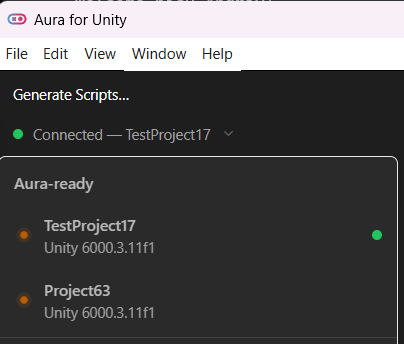
See Unity Troubleshooting for details on working across multiple Unity projects.
Aura Modes
Aura has three modes — the same three you get on Unreal — and it's worth knowing when to reach for each. You can learn more about modes in the Quick Start.
Ask
Aura answers questions about your project without making changes. Great for exploration and debugging. Example prompts:
- "Look through the open scene and list every prefab instance that's missing a Collider component."
- "What controls the player's movement speed in this project? Trace it from input to velocity."
- "Read
@PlayerController.csand explain whyJump()sometimes double-fires."
Aura cannot modify your project while in Ask mode.
Plan
Plan mode produces a step-by-step implementation plan you can review before anything is touched. Best for larger or unfamiliar systems. Example prompts:
- "Plan out an inventory system with stacking, weight limits, and a slot-based UI."
- "Plan a save/load system that persists player stats, inventory, and scene position as JSON."
- "Plan a dialogue system that reads branching conversations from ScriptableObject assets."
Plans are stored in your project under Assets/.Aura/plans/ as editable markdown files. When you're happy, press Start and Aura implements the plan in Agent mode.
Agent
While in Agent mode Aura can create and edit files, modify your scene, install packages, and run shell commands. Typical prompts:
- "Create a
MonoBehaviourcalledHealthComponentwith aCurrentHealth/MaxHealthpair, aTakeDamage(int)method, and aDiedUnityEvent." - "Add a Rigidbody and BoxCollider to every prefab under
Assets/Enemies/." - "Generate a 3D model of a wooden crate and drop it into the open scene at
(0, 1, 0)."
See the Scene & Prefab Agent, Coding Agent (C#), and Editor Agent (Unity) pages for the full capabilities reference.
Giving Aura for Unity context
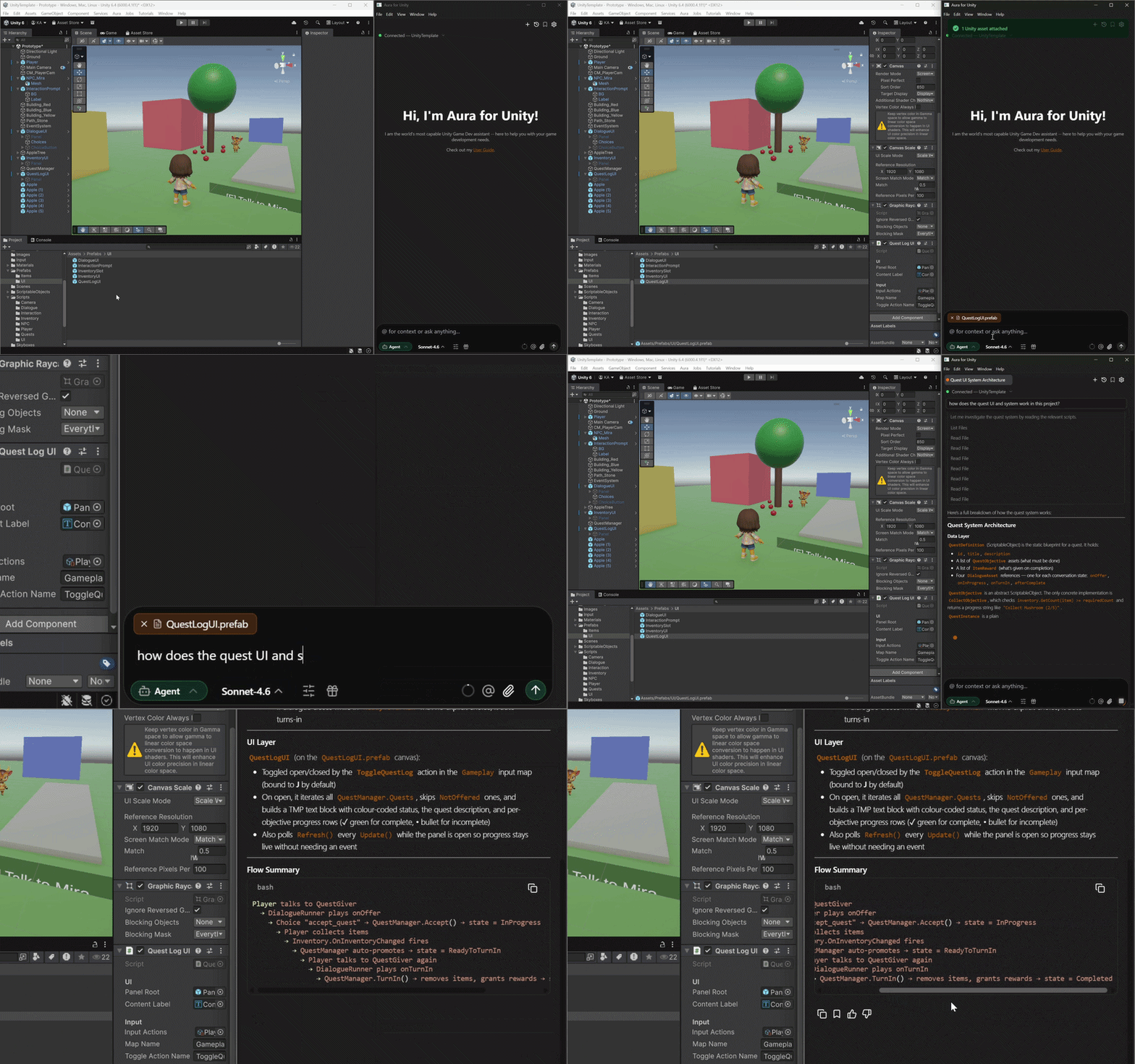
Context is extra information Aura uses to build better answers — selected files, open scenes, reference images. The same context mechanisms work on Unity as on Unreal:
- Drag & drop from the Project window or Hierarchy into the Aura chat.
@mentions — type@in the chat to search your project's asset files — scripts, scenes (.unity), prefabs, materials, animation clips, and other assets under your project root. Scene Hierarchy objects aren't searchable via@; reference them by name in the prompt, select them in the Hierarchy before prompting, or drag them into the chat.- Image attachments — paste from clipboard, drag from File Explorer / Finder, or use the Attach Image button.
For the full breakdown see Giving Aura Context — the mechanisms are the same across both editions, only the source locations (Project window vs. Content Browser) differ.
First prompts to try
Once you're signed in and connected, these are a quick way to confirm everything is wired up:
- "Tell me about this project." — Aura looks at the project structure and summarizes it.
- "List every prefab in
Assets/that has a Rigidbody." — exercises asset queries. - "Add a Cube to the open scene at position
(0, 1, 0)namedTestCube." — exercises scene edits (Agent mode). - "Generate a stylized low-poly tree and add it to the scene." — exercises 3D model generation + scene placement.
What's included in v1
AuraForUnity v1 focuses on the capabilities that move the needle for Unity day-to-day.
Available in v1:
- Scene and GameObject editing — create / delete / parent / rename, add and configure components, transforms, tags, layers, prefab creation and variants, nested prefabs, terrain, scene save/open.
- C# script authoring — create and edit MonoBehaviour, ScriptableObject, and editor scripts; search the codebase; compile checks.
- Editor automation — arbitrary C# editor scripts, batch asset edits, Input System asset authoring, Animator controller + blend trees.
- Package management — list, install from registry or git URL, remove, search.
- Profiling helpers — worst CPU frames, GC spike detection, high-polygon object detection.
- Image generation and editing, in-painting, reference-guided edits.
- 3D model generation (text-to-3D and image-to-3D) and character rigging, powered by Tripo.
- Editor screenshots so Aura can review its own work.
Not in v1:
- Sound / music generation.
- Animation retargeting.
See Scene & Prefab Agent, Coding Agent (C#), and Editor Agent (Unity) for deep dives on each area.
Troubleshooting
For Unity-specific issues (installer won't open, plugin not detected, project picker, log locations), see Unity Troubleshooting.
General troubleshooting (connection issues, chat thread issues, account setup) applies across both editions — see the Troubleshooting section.