Unreal Engine
Advanced Settings
Aura is designed to adapt to your workflow. This page walks through the different ways to customize how Aura behaves, looks, and fits into your day-to-day development flow.
Project Memory
Aura builds up a memory of your project as you work. It picks up your conventions, how the project is laid out, and decisions made in earlier conversations, then carries that context into new chat threads on its own automatically.
This is on by default and stored on your machine. To keep every thread isolated instead, turn off Project memory under Settings → Chat Options.
You can also write memory explicitly by setting up a project memory file outlined below.
Project memory file
You can set up a project memory file that Aura reads from when a new chat has begun. This is helpful for important context that Aura should always have such as game design information, naming conventions, etc.
-
Go to
ProjectRoot/Saved/.Aura -
Create a .txt file called
project_memory.txtand write the information you’d like
Custom Instructions
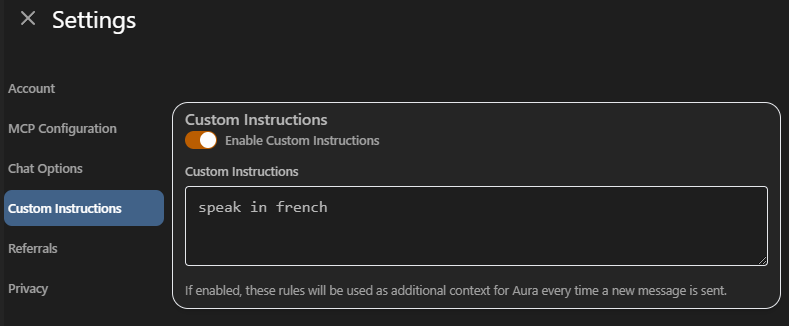
Custom instructions are additional rules Aura follows every time it answers. It’s useful for tuning Aura to your workflow and style.
Example: Have Aura speak another language by default.
Chat Options
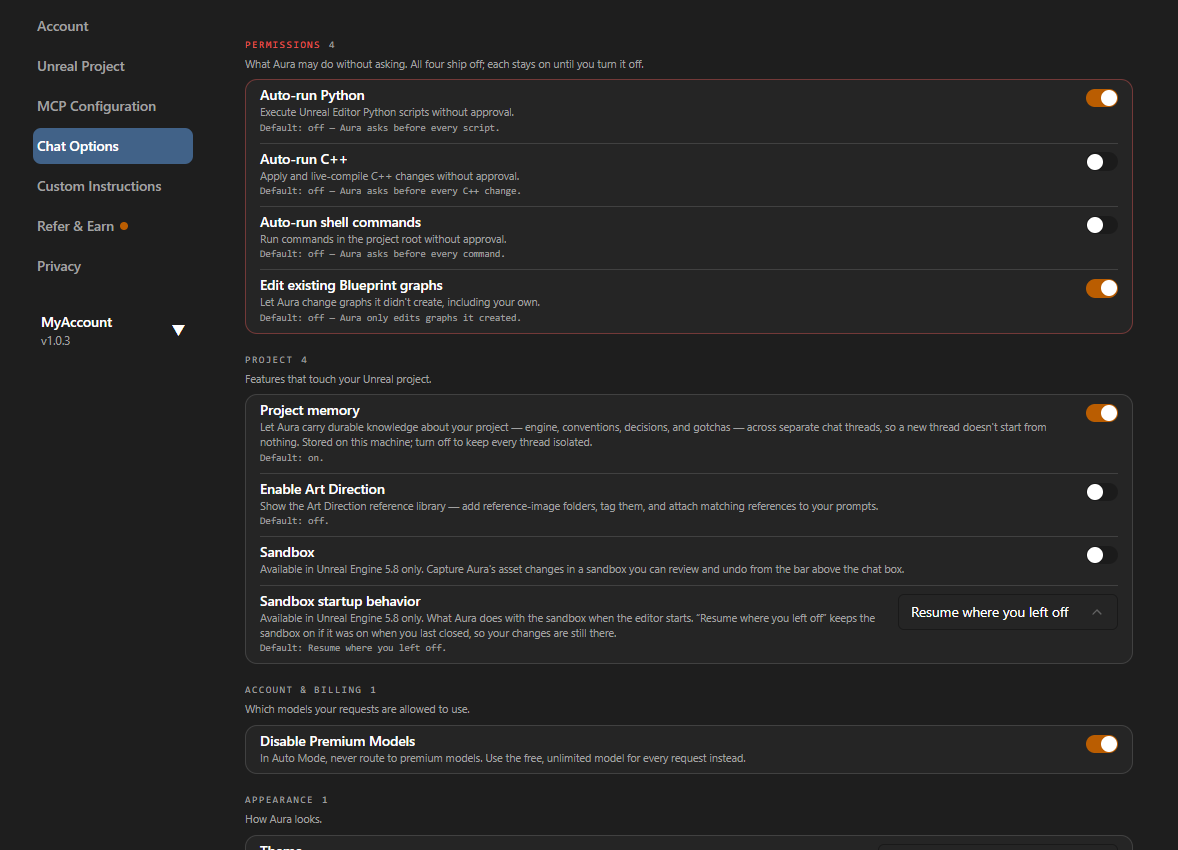
Go to Settings → Chat Options to customize how chat behaves. Settings are split across a Simple and an Advanced tab, with a search box for jumping straight to one.
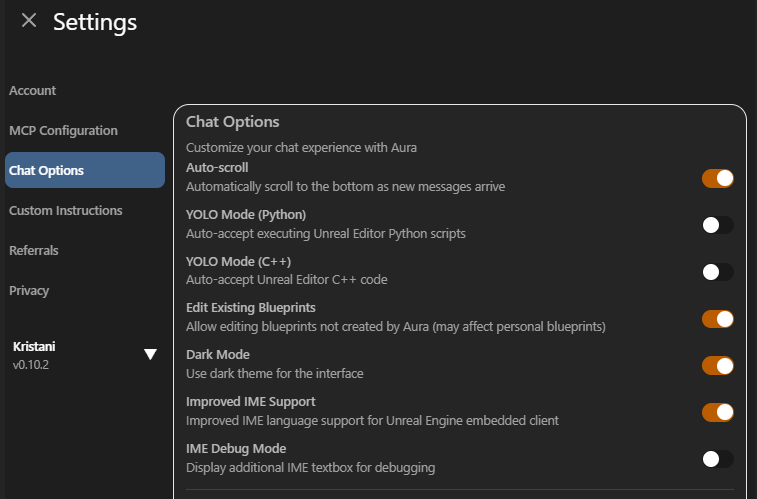
Unique settings worth calling out:
-
Project memory — carries durable knowledge about your project (conventions, decisions, gotchas) across separate chat threads, so a new thread doesn’t start from nothing. On by default, stored on this machine. See Project Memory.
-
Disable Premium Models — in Auto mode, never route to premium models; use the free, unlimited model for every request instead. Training Data must be on. See Pricing Explained.
-
Sandbox startup behavior — UE 5.8 only. Decides what happens to the sandbox when the editor starts. The default, Resume where you left off, keeps the sandbox on if it was on when you last closed. See Filesystem Sandbox.
Bookmarks
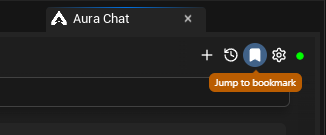
You can bookmark a message at the bottom of Aura’s message.
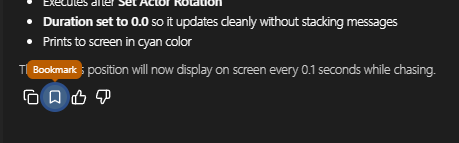
Then quickly jump to the message by clicking the bookmark icon at the top right of chat, or by pressing Alt + [. Note bookmarks are per thread.
Custom Modes
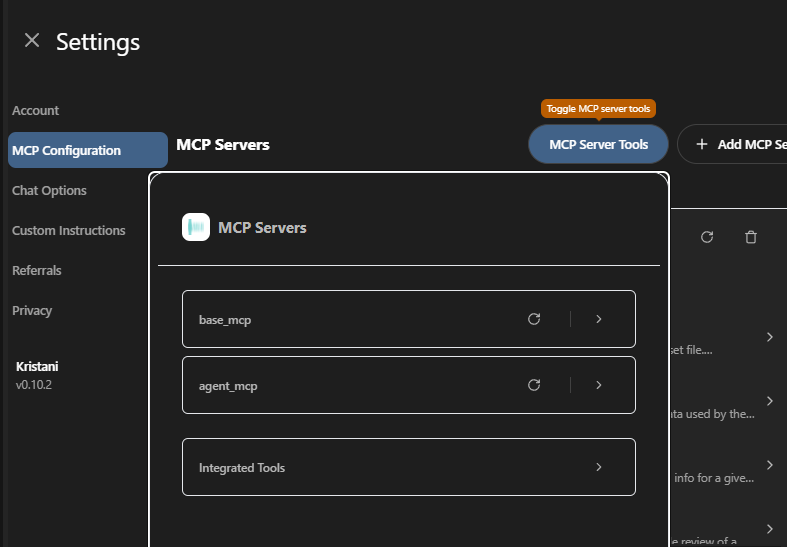
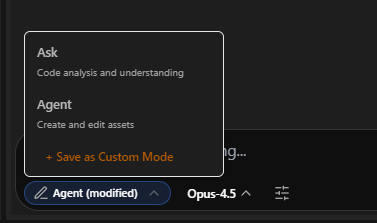
You can toggle individual tools on/off in Settings then save the configuration as a custom mode.
Example use case: If you only want Aura to utilize its web search tool and answer more quickly, you can toggle all other tools off and save that configuration as a custom mode.
Go to Settings > MCP Configuration > MCP Server Tools
Go back to Aura Chat and select save custom mode from the dropdown menu. You can rename it as you’d like too.
Other Ways to Run Aura
Aura was designed to fit into your workflow, whether that’s in or outside the editor.
In-Editor Chat
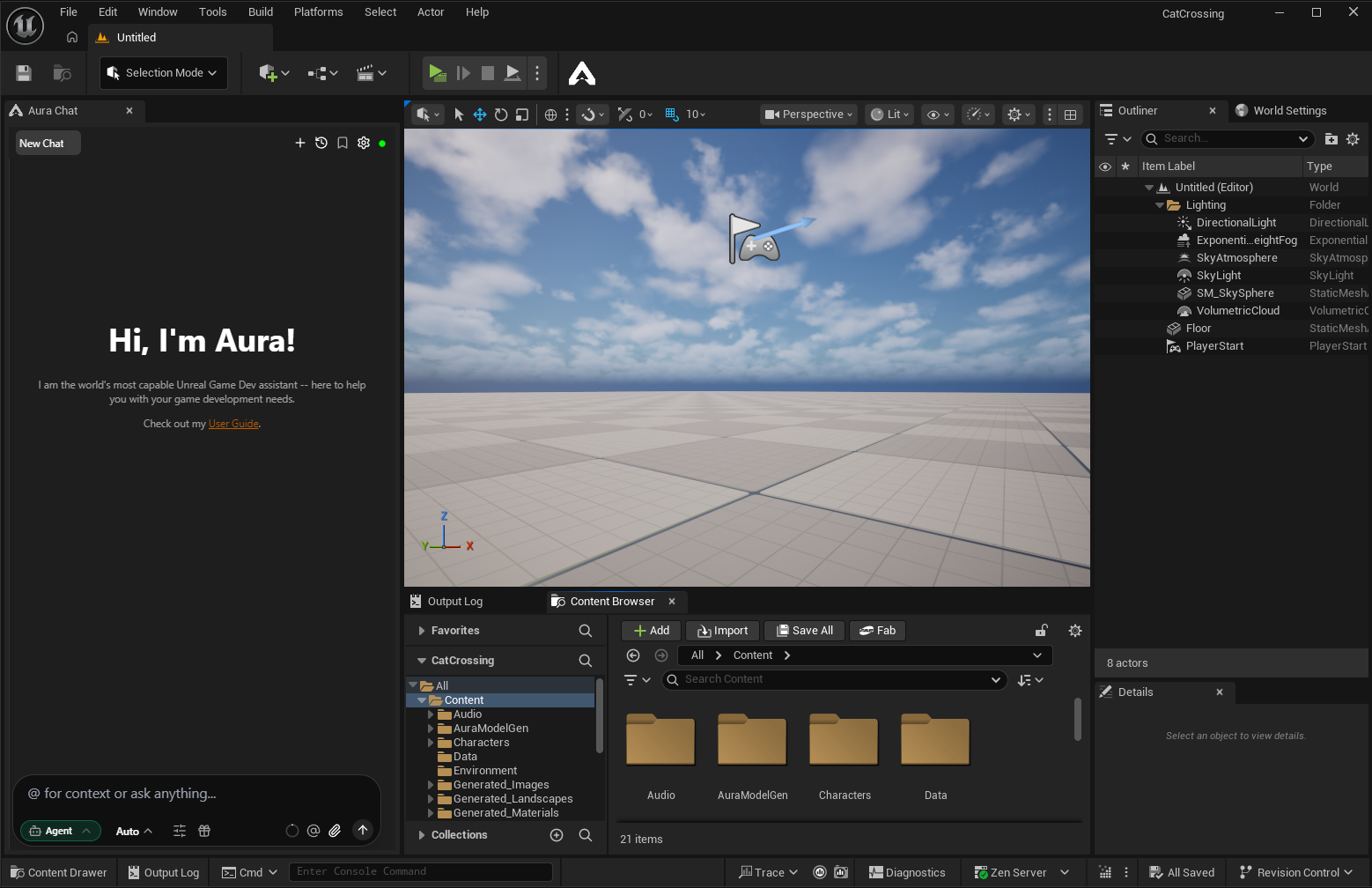
You can run Aura as a chat window inside Unreal. It docks anywhere in the editor, just like other UE windows.
The Aura button at the top of the editor opens the standalone app by default. To have it open the docked in-editor chat instead, go to Editor Preferences > Aura Plugin Settings and uncheck "Open Aura in Electron Window". Full install steps are in Quick Start.
Standalone App (Headless Mode)
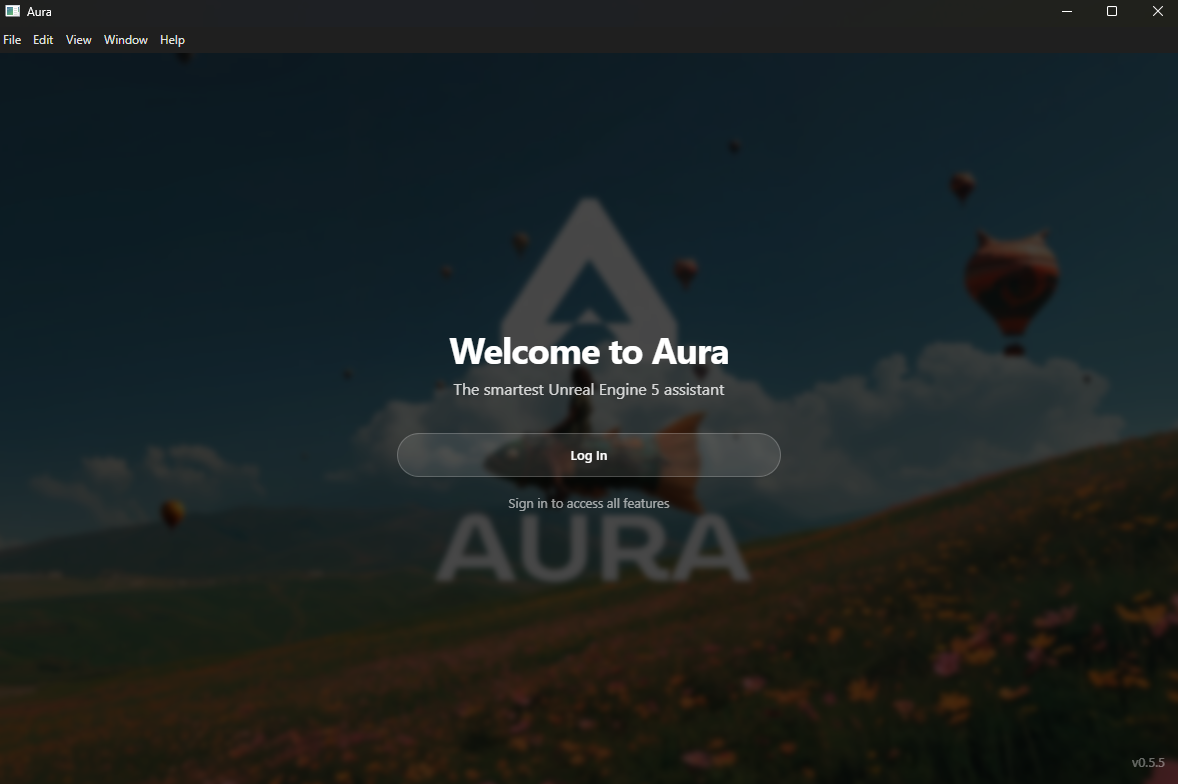
You can also run Aura as a standalone application. When you open the standalone app, it starts Unreal Engine as a lightweight background process (headless mode), no full editor UI needed. This means you can chat with Aura, create plans, generate assets, and more without waiting for the full editor to load.
If you later open the full Unreal Editor, Aura automatically shuts down the headless instance and connects to the editor instead.
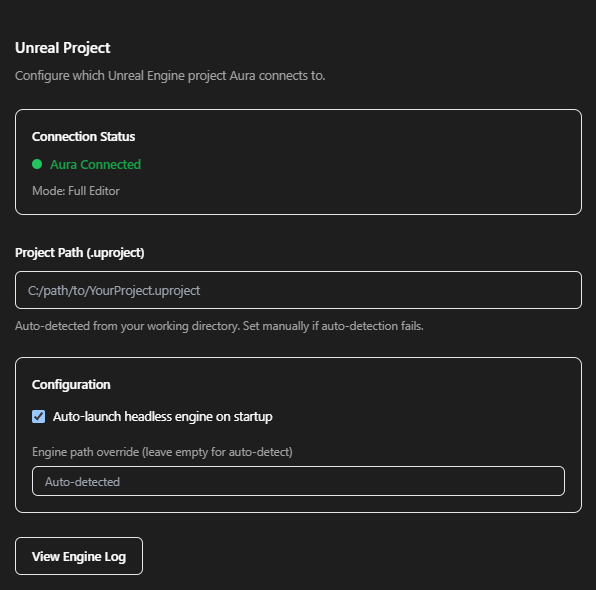
You can configure headless mode in Settings > Unreal Project:
-
Project path — select which .uproject to load in headless mode.
-
Auto-launch — toggle whether headless UE starts automatically when you open the standalone app.
💡 Headless mode is great for quick tasks like asking questions, creating plans, or generating assets without loading the full editor.
The only limitation of the standalone app is that you can’t drag & drop assets from UE. To give Aura context via drag & drop, you’ll need to use the in-editor chat.
Which Way is Best?
This depends on your preferred workflow, screen real estate, and project size. If you prefer to stay in editor, the in-editor chat might be best for you. If you have a larger project and dual monitors, the standalone app runs faster than in-editor chat since it doesn’t render inside the Unreal viewport.